

 Follow


 This project is entirely made to show how you can use current Wiki markup support in Geni, using Unicode® symbols and an overview of images you can use in the About Me part of profiles, surname and project descriptions.
 ●▬▬▬▬▬▬ஜ۩۞۩ஜ▬▬♥▬▬ஜ۩۞۩ஜ▬▬▬▬▬▬▬●
Using Titles
=Level 1 title=
==Level 2 title==
===Level 3 title===
====Level 4 title====
=====Level 5 title=====
======Level 6 title======
=Use the nowiki tag to display a literal = at the beginning of a line without interpreting it as a title (<nowiki>=</nowiki>)
==  &  Indented title==
Centering a title =={{transparent.gif|400px1px|center|Centering a title}}==
You can also use images and hyperlinks in a title. To ensure a right justified or centered title independent of browser window size you can simply use an image containing the title and use the center ot right option to the image. See the image options below.

 Using > to make indents does not work any more and since in general multiple space characters in the text is reduced to one you can use nonebreak-space, em-space, en-space or thin-space characters in front of or within the text to make indents and gaps, either by copying them from here: NBSP (non-breaking space), ' ', Em space, &emsp ' ', En space,   ' ' and Thin Space,   ' ' or simply use &the numeric Unicode codes like this:   (em-space).
Another more precise method is using a transparent image with a size option to create a blank space where, in this example an image present on the Geni server so we does need the full web address: {{transparent.gif|45x1px}} - the 45x1px tells that the image size should be 45 x 1 pixel. Replace the 1 to make vertical spacing as well to make an indented block like here with both a left and right indentation. This text is starting with: {{transparent.gif|20x80px|left}}{{transparent.gif|20x80px|right}} to get that effect.
Italic text - entered by adding two '-s before and after the text. You can also use the <em> tag
''Italic text''
Bold text - entered by adding three '-s before and after the text. You can also use the <strong> tag.
'''Bold text'''
Bold Italic text - you can't just use five '-s before and after the text; the italic marking (two 's) has to be "outside" the bold marking (three 's), with at least a space between them:
'' '''Bold Italic text''' ''
(note that this "space" requirement is one difference between Geni Wikitext and Wikipedia Wikitext)
Entering Teletype text - done by adding a grave accent before and after the text or the <tt>Teletype Text<tt> tag. You can also use the <pre>Preformatted Text</pre> tags, but it does not preserve linebreaks as it should and does not work inline either.
`Teletype text`
<pre>Preformatted Text</pre>
Preformatted Text<br/>over two lines does not work.
Teletype Text tag <tt>Teletype Text<tt>
over two lines does however work, but multiple
spaces to make indents or inline spaces does not work.</tt>
The easiest way to set a font-face is by selecting the text and clicking on the [B] or [I] button in the toolbar above the text edit window.
Geni now partly supports the <span> tag, where you can use the style parameter with the following semicolon separated arguments: color, background, font-size and line-height. Example: red text is made by <span style="color:red">red text</span>. You can also use the <span> tag to make linkable ids in the text, for example <span id="Indents"/> at the Making indents and whitespace within text title, the link [https://www.geni.com/project-8404#Indents Making indents and whitespace within text] will jump to that part.
Bullet levels are made by inserting a number of *'s at the start of the line and when inserting long lines the text wraps to the same level.
* Bullet level 1
** Bullet level 2. If the text is very very very very very very very very very very very very very very very very very very long it wraps to the same indentation level.
*** Bullet level 3
**** Bullet level 4* Use the nowiki tag to display a literal * at the beginning of a line without interpreting it as a bullet list (<nowiki>*</nowiki>)
• Combining the transparent image trick mentioned above with a manually entered bullet as {{transparent.gif|45x1px}}• but you have to manually wrap and indent the text to align with the bullet if the text will wrap over to a new line. ({{transparent.gif|45x1px}}
Automatically numbered lists are made by inserting a number of #'s at the start of the line. Other usages as on bullets.
# Use the nowiki tag to display a literal # at the beginning of a line without interpreting it as a numbered list (<nowiki>#</nowiki>)
You can also use a mixture of different types of list
Unfortunately there is no table options yet in the Geni,- you can cheat using box drawing characters, but it is almost impossible to get it correct.
The below example is made using Javascript Box Drawing Demo where spaces is replaced by , and to get the vertical lines aligned we can only display it using the tele-text option.
╔════╤═══════════════════════════════════╗
║ ▲▼ ┃           This is what?           ║
╟━━━━╋━━━━━━━━━━━━━━━━━━━━━━━━━━━━━━━━━━━╢
║    ┃                   ╭─────────╮     ║
║    ┠───────╦══════╦────┤         ├─────╢
║    ┃ ┈┈┈┈┈ ║╳╳╳╳╳╳║    │  ░░░░░  │     ║
║    ┠───┬───╢╳╳╳╳╳╺╟────┤  ░░░░░  ├─────╢
║    ┃  ╱┊╲  ║╳╳╳╳╳╳║    │  ░░░░░  │     ║
║    ┃ ╱ ┊ ╲ ║╳╳╳╳╳╳║    ╰─────────╯     ║
╚════╧═══╧═══╩══════╩════════════════════╝
When adding a link that contains parentheses, the result may look like this:
Canada (Nouvelle-France)
To correct this, replace the parentesis characters in the link with their code as follows:
%28%29 The link will look this way in the Geni text editor... [https://fr.wikipedia.org/wiki/Canada_%28Nouvelle-France%29 Canada (Nouvelle-France)]
...and will work correctly after you save the page:
Canada (Nouvelle-France)
 Geni profile About Me's, project descriptions, messages,and discussions support images, but there is currently no option to upload them or link to pictures in your albums or from other sites in the WikiText editor, so you have to enter them manually into your text. To add a picture to your text you simply use the syntax: {{Image URL without http:}}, - simply using the URL for your photo without the http: prefix. This method does also work for pointing to images on external servers, demonstrated on the Unicode logo above.
You can also simply paste an image into text fields on Geni where formatting options is available. For other options like frame, size, alignment etc of images see the help section for other format options.
If using an image uploaded to Geni you can get variants of the image by replacing the last part of the filename. As a starter you can right-click an image in your browser to copy the image URL and replace the last part (as in the example above is _t2), where:
NOTE: Since many images now only can be accessed using a #hash code as part of the link it is easier to just set the image size yourself with the image options mentioned below:
Image syntax:
{{image_url|options|caption}}
Where options is
{{baby_badge.gif|frame|left}} {{baby_badge.gif|frame|right}} {{baby_badge.gif|frame|center}}
Example, baseline: , sub:, super:, top:, text-top:,
middle:, bottom:, text-bottom:- with some text after.
You can also use images that already exist in the image folder on the Geni server as the examples in the Blog_Badges page, and you find a collection and syntax examples of them below. You don't need the full URL for those, only the relative path to the image folder on the Geni server, - the image at the end of the title on this page is entered as {{baby_badge.gif|text-bottom}}
 Useful Unicode® symbols
 Wow!
Wow! you! (Entered as: I {{icn_heart.gif|sub}} You!)
ღ´-*•.¸(*•.¸ ¸.•*´)¸.•*´)’•.¸*♫♪♥(✿◠‿◠)♥♫♪*¸.•’´¯).¸•★.¸ •´¯)___(¯•´¯)__ ☻¸¸.•*¨*•♫♪ ٩(•̮̮̃•̃)۶ *•.¸¸.•*´¨*•.¸.•*´¨*•.¸¸.•*´¨*• {{itty_badge.gif}} {{baby_badge.gif}} {{mommy_badge.gif}}
 {{daddy_badge.gif}}
  {{Geni.gif}}
 {{Geni.jpg}}
 {{GeniBeta.jpg}}
 {{igeni_translator.png}}
 {{geni_developer.png}} Geni
 {{daddy_heart.gif}}
 {{mommy_heart.gif}}
 {{baby_heart.gif}}
  {{itty_heart.gif}}
 {{myheritage/icon_smart_match.png}}
 {{icn_collaborator_both_14.gif}}
 {{icn_down.gif}}
 {{icn_check.gif}}
 {{icn_geni_pro.gif}}
 {{badge_geni_pro.gif}} {{sticker_new_left.gif}} {{sticker_new_right.gif}}
 {{icn_family_tree.gif}}
 {{icn_message.gif}}
 {{icn_message_send.gif}}
 {{icn_message_link.gif}}
 {{icn_request.gif}}
 {{icn_request_send.gif}}
 {{icn_help.gif}}
 {{icn_padlock.gif}}
 {{icn_profile_edit.gif}}
 {{icn_pushpin_out.gif}}
 {{icn_pushpin_in.gif}}
 {{icn_world.gif}}
 {{icn_add.gif}}
 {{icn_organizer.gif}}
 {{x_close_small.gif}}
 {{icn_cake.gif}} {{icn_heart.gif}}
 {{icn_person.gif}}
 {{icn_photos.gif}}
 {{x_close.gif}}
 {{close.gif}}
 {{icn_calendar.gif}}
 {{icn_album.gif}}
 {{icn_album_add.gif}}
 {{icn_collaborator_both.gif}}
 {{icn_hourglass.gif}}
 {{icn_magnifying_glass.gif}}
 {{icn_photos_video.gif}} {{quote_start.gif}}
 {{quote_end.gif}}
 {{icn_favorite.gif}}
 {{icn_favorite_remove_small.gif}}
 {{icn_ext_link.gif}}
 {{icn_citation.gif}}
 {{spinner.gif}}
 {{icn_refresh.gif}}
 {{spinner_blue.gif}}
 {{rotating_world.gif}}
 {{x_close_large.png}}
 {{icon_check.png}}
 {{icn_event_title.gif}}
 {{premium_badge_simple.gif}}
 {{plus_badge_simple.gif}}
 {{documents/doc.png}}
 {{tr8n_promo.gif}}
 {{start_page/3steps-collaborate.png}}
 {{start_page/3steps-matches.png}}
 {{start_page/3steps-people.png}}
 {{premium_tree_matches_framed.gif}} {{privacy/stick_figures_blue.jpg}}
 {{privacy/stick_figures_green.jpg}}
 {{popup_callout.gif}}
 {{popup_callout_right.gif}}
 {{webmail/gmail.png}}
 {{webmail/yahoo.png}}
 {{webmail/hotmail.png}}
 {{webmail/aol.png}}
 {{webmail/facebook.png}}
 {{webmail/other.png}}
 {{loading_bar.gif}}
 {{progress_bar_1.gif}}
 {{facebook_white_small_short.gif}}
 {{external/twitter_bird_small.gif}}
 {{contact_icons/aim.gif}}
 {{contact_icons/youtube.gif}}
 {{contact_icons/googletalk.gif}}
 {{contact_icons/msnmessenger.gif}}
 {{contact_icons/yahoomessenger..gif}}
 {{contact_icons/myspace.gif}}
 {{contact_icons/friendster.gif}}
 {{contact_icons/slide.gif}}
 {{contact_icons/plaxo.gif}}
 {{contact_icons/flickr.gif}}
 {{contact_icons/bebo.gif}}
 {{contact_icons/linkedin.gif}}
 {{contact_icons/blog.gif}}
 {{contact_icons/facebook.gif}}
 {{contact_icons/twitter.png}}
 {{contact_icons/icq.gif}}
 {{contact_icons/other.gif}}
 {{contact_icons/personalwebsite.gif}}
 {{contact_icons/workwebsite.gif}}
 {{external/paypal_button_small.gif}}
 {{facebook/connect_white_large_long.gif}}
 {{plumber.jpg}}
 {{photo_silhouette_f_thumb2.gif}}
  {{photo_silhouette_m_thumb2.gif}}
  {{photo_silhouette_u_thumb2.gif}}
 {{no_photo_m.gif}}
  {{no_photo_f.gif}}
 {{no_photo_u.gif}}
 {{merge_similar_arrow.png}}
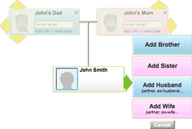 {{start_page/3steps-step1.png}}
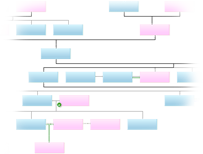 {{start_page/3steps-step2.png}}
 {{start_page/computer-video.png}}